
FROM OUR BLOG
How to Use an AI Music Video Generator from Audio File in 2026
Quick Answer: Any AI music video generator from audio file works the same way: upload your MP3, WAV, or FLAC, and the AI analyzes the rhythm, mood, and structure of your track to automatically generate synchronized visuals. The quality of your output depends on two things — the platform you choose and the quality of the audio file you upload. Clipstars.ai is the most complete option for going from audio file to social-ready video in under 5 minutes, with no editing experience required.
Your Audio File Is the Foundation — Get It Right First
Most guides about AI music video generators start with the platform comparison. This one starts where the workflow actually starts: your audio file.
Here is something most creators discover too late: the AI cannot generate better visuals than the audio data it receives. Beat detection, mood analysis, stem separation, lyric transcription — every downstream output depends on the quality and format of the file you upload. A muffled MP3 at 128 kbps will produce looser beat sync and less accurate mood-based visual selection than a clean WAV master at 24-bit/48kHz.
As One More Shot's 2026 production guide puts it: "Upload WAV or FLAC when possible. Lossless audio gives AI tools more data to analyze, which means better beat detection and tighter visual synchronization. MP3 at 320 kbps is also perfectly fine."
Before you even open a platform, make sure your audio file is ready. Everything after that is easier.
The 3 Audio File Formats That Matter for AI Video Generation
Not all formats are equal when it comes to AI processing. Here is what you need to know in practical terms (not audiophile theory):
WAV — Best for AI Processing Quality
WAV is uncompressed audio — every sonic detail of the original recording is preserved. For AI music video generators, this means the algorithm has the richest possible data to work from when detecting beats, analyzing frequency content, and identifying emotional sections (verse, chorus, bridge).
Industry standard in 2026 for recording and mixing: 24-bit / 48kHz WAV. File sizes are large (a 4-minute track at 24-bit/48kHz is approximately 55MB), but upload times on modern connections are fast enough that this is not a practical barrier.
Use WAV when: you have the master from your DAW and want the best possible AI output.
FLAC — Best Balance of Quality and File Size
FLAC (Free Lossless Audio Codec) applies lossless compression — file size is approximately 50% smaller than WAV, with zero quality loss. The audio can be perfectly reconstructed to its original, uncompressed state. According to iPlayer Music's 2026 format guide, FLAC at up to 32-bit/96kHz is now the preferred format for archiving and high-quality distribution.
For AI video generation purposes, FLAC and WAV produce functionally identical results. Most platforms accept both.
Use FLAC when: you want lossless quality with smaller file sizes, or when you are distributing files across multiple tools and need efficient storage.
MP3 — Acceptable, With One Condition
MP3 is a lossy format — it permanently removes audio data during compression to reduce file size. At 320 kbps, the quality loss is essentially inaudible in casual listening, and most AI video generators handle it well. Below 320 kbps, beat detection becomes noticeably less accurate, and lyric transcription errors increase.
The practical rule: MP3 at 320 kbps is fine for AI video generation. MP3 at 128 kbps or below will produce noticeably weaker sync results.
Use MP3 when: you do not have the original WAV or FLAC, and the file is at 320 kbps or higher.
Quick Reference: Format Decision Table
Situation | Recommended Format |
|---|---|
You have your DAW master | WAV (24-bit / 48kHz) |
You want lossless with smaller files | FLAC |
You only have a streaming download | MP3 at 320 kbps |
You are uploading a rough demo | WAV if available, MP3 320kbps otherwise |
You generated the track on Suno (paid tier) | Export as WAV from the platform |
You generated the track on Udio | Note: since October 2025, Udio operates as a walled-garden service — audio download is no longer available on paid tiers. Older downloads still work. |
How an AI Music Video Generator Processes Your Audio File
Understanding what happens between upload and output helps you make better decisions at every step. Here is what the AI is actually doing with your file:
1. Waveform and BPM Analysis
The first thing any AI music video generator does is read the waveform to extract tempo (BPM) and identify beat positions. This data drives the timing of visual cuts and transitions. More sophisticated platforms — including Clipstars.ai — go beyond raw BPM detection and use what they call Genre-Aware Pacing: the AI identifies the genre and emotional arc of the track and adapts transition styles accordingly.
An EDM track at 140 BPM gets hard, high-frequency cuts at drops. A piano ballad at the same tempo gets slow dissolves. Raw BPM detection alone cannot make that distinction.
2. Stem Separation
More advanced platforms split the audio into individual stems — typically vocals, drums, bass, and melodic instruments — so the visuals can respond to specific elements of the mix. As Neural Frames describes it: "the video responds to what's actually happening in the mix — a hi-hat pattern, a vocal phrase, a bass drop" rather than just the overall loudness of the track.
This produces a significantly more musically intelligent video. A visual cut triggered by a snare hit feels tighter than one triggered by the overall volume envelope.
3. Mood and Genre Classification
The AI classifies the emotional register of the track — energy level, valence (positive vs. melancholic), and genre — and uses this to select or generate appropriate visual styles. A high-energy trap track and a lo-fi hip-hop track might share a similar BPM, but their visual language should be entirely different. AI platforms that only use tempo data miss this distinction entirely.
4. Lyric Transcription (If Enabled)
Platforms with lyric overlay capability run auto-transcription on the vocal stem of your audio. Clean, well-recorded vocals produce near-perfect transcription. Heavily processed or reverb-heavy vocals introduce errors. WAV files typically produce better transcription accuracy than compressed MP3s because the vocal frequencies are fully preserved.
5. Visual Generation and Sync
Once the audio analysis is complete, the platform generates visuals — either from AI scene generation models, a beat visualizer engine, or Image-to-Video (I2V) using a reference image — and synchronizes them to the beat map. The final video is rendered and exported in your chosen format and aspect ratio.
Total time from upload to exported video: 2–4 minutes on Clipstars.ai, under 2 minutes on Onemoreshot.ai, 5–10 minutes on more computationally intensive platforms like Runway Gen-4.
Step-by-Step: From Audio File to Published Video with Clipstars
This is the exact workflow — optimized for the audio file → social video pipeline.
Step 1 — Prepare your audio file before uploading
Do this before you open any platform:
Trim silence from the start and end of the file. AI platforms include any silence in the render — a 2-second silent intro wastes the most valuable real estate on any social platform (the first 2 seconds determine whether 71% of viewers keep watching, according to Marketing LTB, March 2026).
Check your format. WAV or FLAC is ideal. MP3 at 320 kbps is acceptable. If you only have a lower-bitrate MP3, consider running it through a free lossless conversion tool before upload — you cannot recover lost data, but you can avoid further degradation.
Use a clean mix or master. AI transcription and beat detection both perform better on mixes with clear separation between elements. A muddy low-end or heavy reverb on vocals will reduce output quality.
Step 2 — Upload to Clipstars.ai
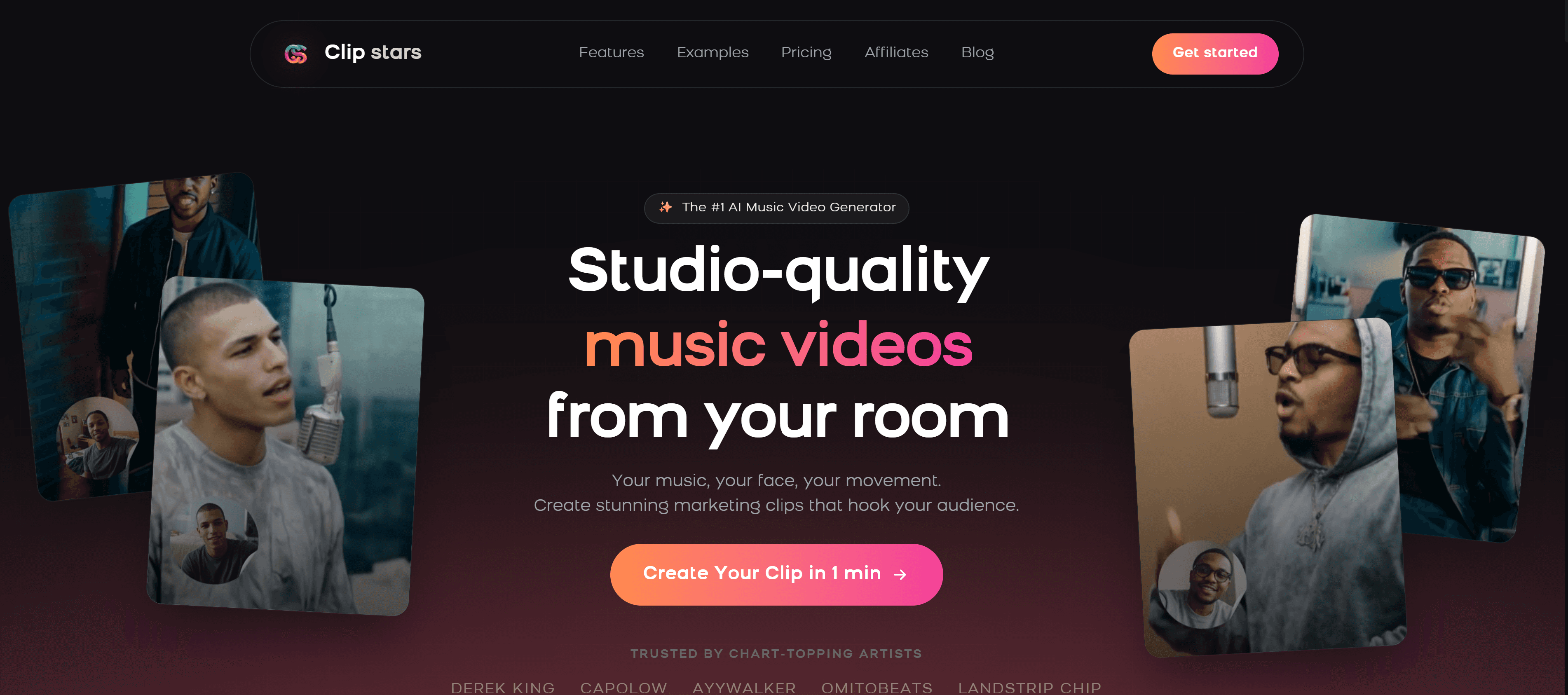
Go to Clipstars.ai and upload your audio file directly. Supported formats: MP3, WAV, FLAC. Suno (paid tier) and legacy Udio exports are also accepted via direct file upload.
The platform reads the waveform immediately and begins audio analysis in the background while you select your visual settings.
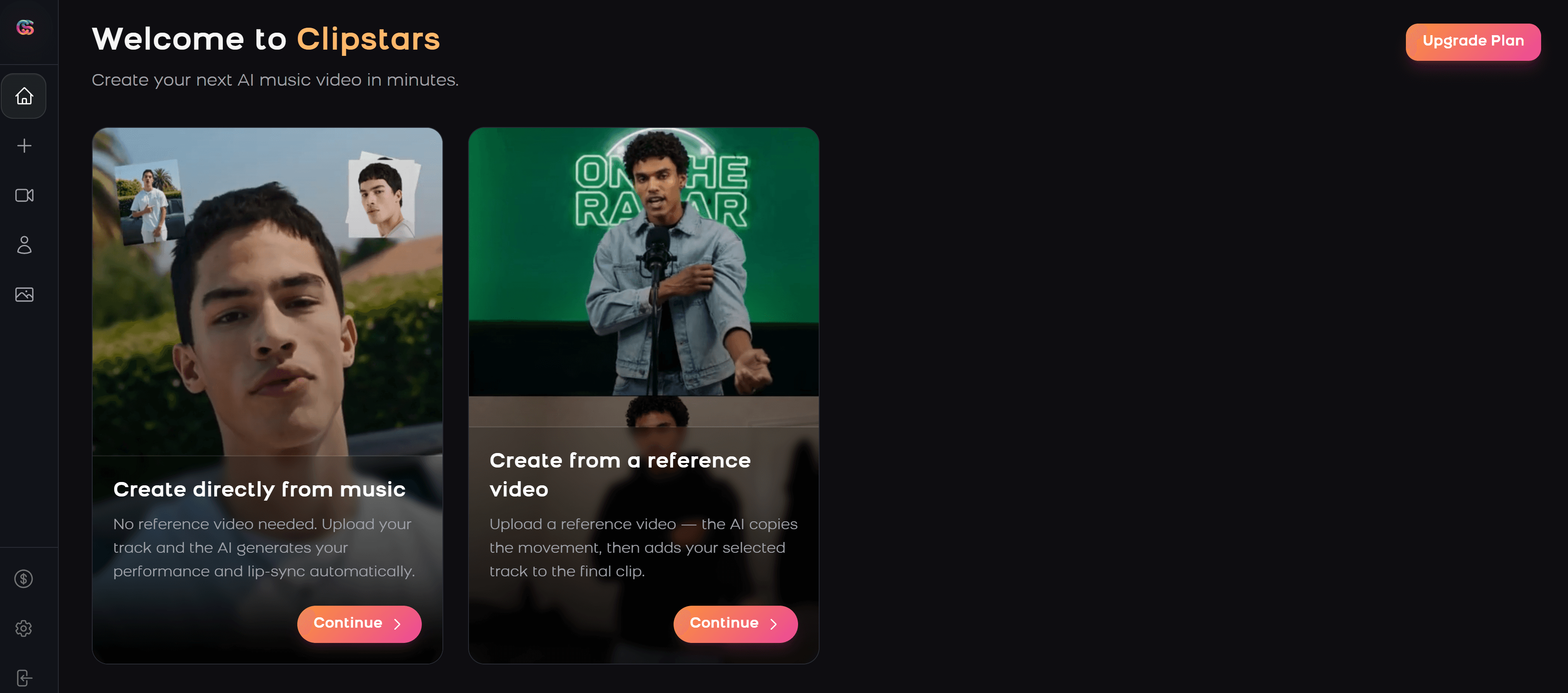
Step 3 — Choose your visual mode
Four options, each suited to different use cases:
AI Scene Generation — the platform generates original cinematic or abstract visuals from scratch, synchronized to the beat and genre of your track. Best for: artists who want a fully produced look without providing any visual assets.
Beat Visualizer — frequency-reactive waveforms, particle effects, and audio-reactive animations. Best for: EDM, lo-fi, and instrumental content where the visual is a complement to the audio rather than a narrative.
Lyric Overlay — auto-transcription of your vocals, rendered as animated text over AI-generated or visualizer backgrounds. Best for: hip-hop, pop, and R&B where lyrics are the center of attention. Available on the Pro plan.
Image-to-Video (I2V) — upload a reference image (album artwork, a portrait, a visual concept) and the AI generates scenes that stay visually consistent with that image across the entire video. Best for: artists building a cohesive visual identity across an EP or album campaign. Available on Clipstars Pro.
Also read: Top 7 AI Music Video Generators for Social Media in 2026 — for a full platform comparison across all visual modes and price points.
Step 4 — Set your aspect ratio
Choose before rendering — most platforms lock the format after this step.
Platform | Ratio | Resolution |
|---|---|---|
TikTok | 9:16 | 1080 × 1920 |
Instagram Reels | 9:16 | 1080 × 1920 |
YouTube Shorts | 9:16 | 1080 × 1920 |
Standard YouTube | 16:9 | 1920 × 1080 |
Instagram Feed | 1:1 | 1080 × 1080 |
Spotify Canvas | 9:16 | 720 × 1280 (3–8 sec loop) |
2026 note: YouTube extended Shorts to a maximum of 3 minutes in 2025. If your track runs under 3 minutes, a full-length Shorts upload is now viable — and competition in that slot remains low because most artists still default to 60-second clips out of habit.
Step 5 — Preview Genre-Aware Pacing
Before exporting, preview how the AI has interpreted your track's emotional arc. Clipstars' Genre-Aware Pacing engine adapts transition style to genre: hard cuts for EDM and hip-hop, slow dissolves for indie and classical, mid-paced transitions for pop. This is not editable frame-by-frame on the standard workflow, but the preview lets you confirm the pacing feels musically intentional before committing to a render.
If the pacing feels off, try switching visual modes — a Beat Visualizer mode often produces tighter sync on very tempo-complex tracks than AI Scene Generation.
Step 6 — Export and publish
Select your platform preset. Clipstars handles per-platform compression automatically — TikTok, Instagram Reels, YouTube Shorts, and Facebook all have specific encoding requirements that differ from one another. Getting this wrong degrades video quality on upload. Exporting through the preset avoids this.
Render time: approximately 2–4 minutes. Free tier: clean export up to 90 seconds, no watermark. Pro tier: full-length exports, I2V mode, lyric overlays, priority rendering.
Also read: Top 5 Free Music Video Creator Tools for Independent Artists (2026) — if you want to compare free tier options across platforms before committing.
5 Platforms That Accept Audio Files Directly — Compared
Different platforms handle the audio → video pipeline differently. Here is how the main options stack up specifically on the audio file input and processing side:
Clipstars.ai
Formats accepted: MP3, WAV, FLAC, Suno import Audio analysis: BPM + Genre-Aware Pacing + mood classification Stem separation: Yes (for beat sync and lyric transcription) Best for: Complete start-to-post workflow, social export presets, I2V mode Free tier: Yes — up to 90 seconds, no watermark Start free →
Neural Frames
Formats accepted: MP3, WAV, FLAC Audio analysis: 8-stem separation (vocals, drums, bass, synths, and more) — the most granular beat-responsive analysis available Stem separation: Yes — deepest in the category Best for: Producers and electronic artists who want frame-level audio reactivity and 4K export Free tier: Limited; meaningful use requires a paid plan
Freebeat.ai
Formats accepted: MP3, WAV, FLAC, SoundCloud, YouTube, Suno, Udio, TikTok, Stable Audio, Riffusion links Audio analysis: BPM + structure + mood + lyric generation Stem separation: Yes Best for: Lyric video generation depth, broadest input source support Free tier: Yes (with watermark)
Onemoreshot.ai
Formats accepted: MP3, WAV, FLAC, AAC, OGG, Suno/Udio/YouTube links Audio analysis: Rhythm, tempo, mood Stem separation: Basic Best for: Speed — first video free, full HD, no watermark; fastest render time tested Free tier: One video free, no watermark, no credit card
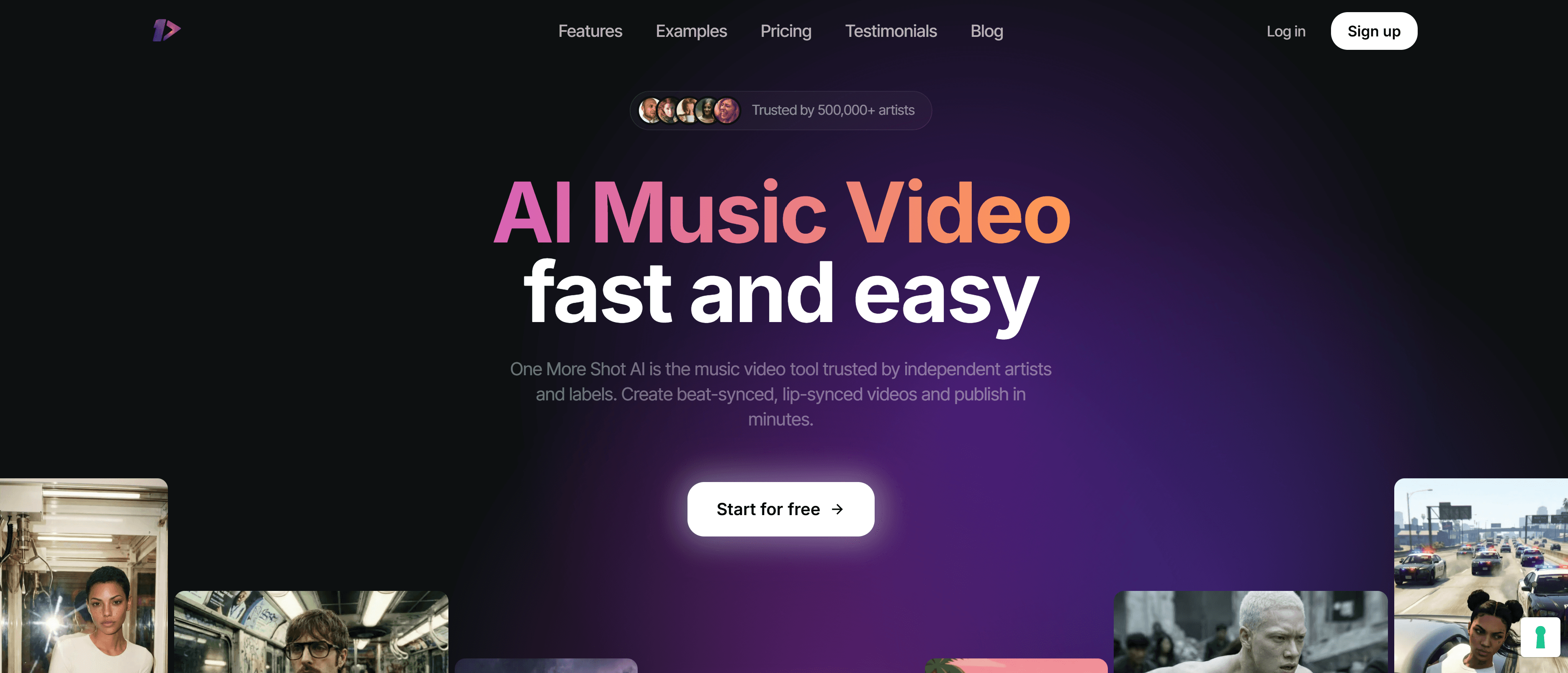
AirMusic AI
Formats accepted: MP3, WAV and most common formats Audio analysis: Scene-by-scene storyboard generation from audio analysis + character profiles Stem separation: Not disclosed Best for: Artists who want narrative storyboard-style music videos with character consistency across scenes Free tier: Limited
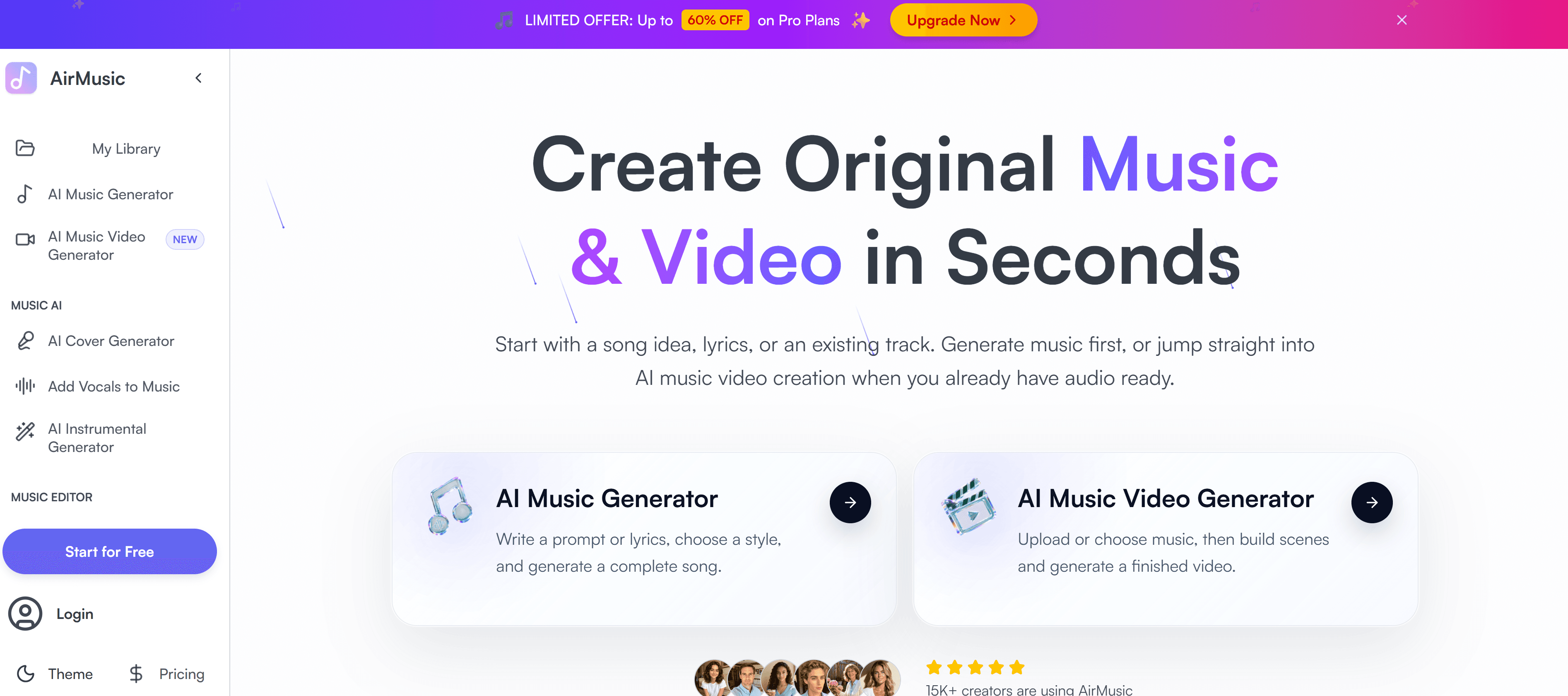
What the AI Cannot Fix: Common Audio File Mistakes
Even the best AI music video generator from audio file cannot compensate for these issues in the source material:
Low-bitrate MP3 (below 320 kbps) High-frequency information is permanently lost. Beat detection becomes less precise on complex arrangements, and lyric transcription errors increase significantly. If you only have a 128 kbps MP3, the output will be noticeably weaker than the same track uploaded as WAV.
Significant clipping or distortion AI beat detection reads waveform peaks to identify beats. A clipped waveform — where the audio exceeds 0dBFS and flatlines — creates false peaks that confuse the timing algorithm. Check your master for clipping before uploading. Target a peak around -1 to -2 dBFS.
Heavy reverb on vocals Reverb tails blur syllable boundaries, which reduces lyric transcription accuracy. If lyric overlay is a priority, use a dry or lightly reverbed vocal stem rather than the full mix if you have access to it.
Variable tempo without clear downbeats Free-tempo or rubato sections (common in classical, jazz, and some indie) confuse BPM-based beat detection. Most AI platforms handle this better than they did two years ago, but tight cut-on-beat sync on variable-tempo sections remains the weakest point in current AI video generation.
Silence at the start or end Any silence in your audio file will be included in the video render. A 2-second black screen at the start of a TikTok video costs you the most valuable viewer retention window. Trim your file before uploading.
Which Audio File Format Gives the Best AI Video Output?
Based on testing across multiple platforms and tracks, the practical ranking for AI music video generation quality is:
1. WAV (24-bit / 48kHz) — best beat detection accuracy, best lyric transcription, most complete frequency data for mood analysis
2. FLAC — functionally identical to WAV for AI processing purposes; lossless compression means no quality difference in output
3. MP3 at 320 kbps — very good for most tracks; small quality difference from WAV that is only visible on fast-tempo tracks with complex high-frequency content
4. MP3 at 192 kbps — acceptable for straightforward tracks; noticeably weaker beat sync on complex electronic arrangements
5. MP3 at 128 kbps or below — avoid; transcription errors and loose beat sync become visible in the final video
The practical advice from One More Shot's 2026 guide applies here: upload WAV or FLAC when you have them. If you only have MP3, make sure it is 320 kbps.
2026 Developments That Change the Audio-to-Video Workflow
Suno and AI-Generated Music — Commercial Rights Matter
Suno's Pro and Premier plans grant commercial rights to generated tracks — meaning you can use AI-generated audio to create AI-generated videos and release both commercially. Free-tier Suno tracks are non-commercial. Before using any AI-generated audio in a monetized video, verify that your Suno subscription tier covers commercial use.
Udio's October 2025 Settlement Changes the Equation
Following Udio's settlement with Universal Music Group in October 2025, the platform shifted to a walled-garden streaming model — paid users can no longer download generated tracks as audio files. If you cannot export the audio file, you cannot upload it to an AI music video generator. Older Udio downloads from before the settlement still work. For new AI-generated music, Suno (paid) is now the more practical source.
Neural Frames' 8-Stem Separation Is Raising the Bar
The standard approach to audio analysis in AI video generators has been tempo and overall loudness. Neural Frames' 8-stem separation — splitting the mix into vocals, drums, bass, synths, and four additional stems — represents a significant step toward frame-level audio reactivity. A visual cut triggered by a specific hi-hat hit is a different experience than one triggered by the overall loudness envelope. Expect this approach to become more widespread across platforms in 2026–2027.
YouTube's "AI Slop" Crackdown — What It Means for Your Videos
YouTube's 2026 content quality crackdown targets mass-produced, zero-effort AI content — not musicians using AI tools creatively. As Neural Frames notes in its 2026 FAQ: "AI-generated visuals don't trigger copyright claims on their own. Content ID is an audio system, so the flagging risk comes from the music, not the pictures. If your track is clean, your video is clean." Monetization is also supported on YouTube for AI-generated content that reflects real creative decisions. The crackdown is aimed at content farms, not independent artists.
15 Frequently Asked Questions
1. What audio file formats work with an AI music video generator? Most platforms accept MP3, WAV, and FLAC. Many also support AAC and OGG. For the best output quality, upload WAV or FLAC. MP3 at 320 kbps is a practical alternative when lossless files are not available.
2. Does audio file quality affect the video output? Yes, directly. WAV and FLAC give the AI more frequency data to work with, which improves beat detection accuracy and lyric transcription. MP3 below 320 kbps produces noticeably weaker sync on complex tracks.
3. Can I upload an MP3 to an AI music video generator? Yes. MP3 at 320 kbps is accepted and produces good results on most platforms. Avoid MP3 files below 192 kbps — beat sync quality degrades visibly.
4. What is the best AI music video generator from audio file in 2026? Clipstars.ai for an all-in-one social-ready workflow with Genre-Aware Pacing, I2V mode, and platform-specific export. Neural Frames for the deepest audio reactivity through 8-stem separation. Onemoreshot.ai for the fastest render time and a free first video.
5. Can I use a Suno-generated track in an AI music video generator? Yes — Suno Pro and Premier plan exports can be uploaded directly as audio files to most platforms including Clipstars.ai and Onemoreshot.ai. Free-tier Suno tracks are non-commercial and should not be used in monetized releases.
6. Can I still use Udio tracks after the October 2025 settlement? Downloads from before the settlement still work. New Udio tracks cannot be exported as audio files — the platform is now a walled-garden streaming service for paid users. For new AI-generated music, Suno is the more practical option.
7. How long does it take to generate a video from an audio file? Onemoreshot.ai: under 2 minutes. Clipstars.ai: 2–4 minutes for a standard 3-minute track. Neural Frames: 5–10 minutes for complex 4K renders. Runway Gen-4: 10+ minutes for cinematic quality.
8. Do I need to trim my audio file before uploading? Yes — trim any silence from the start and end before uploading. Any silence in the file will appear as a black screen in the video. The first 2 seconds are the most important for viewer retention.
9. What is Genre-Aware Pacing and how does it affect video output? Genre-Aware Pacing means the AI adjusts visual transition style based on the emotional arc of the music, not just BPM. Hard cuts for EDM drops, slow dissolves for ballads, mid-paced transitions for pop. It produces significantly more musically natural-feeling videos than tempo-only beat detection.
10. Can I upload a stem (vocals only or instrumental only) instead of the full mix? Yes, on most platforms. Uploading a vocal stem improves lyric transcription accuracy significantly. Uploading a drum stem can produce tighter percussion-reactive beat sync. Not all platforms document this workflow, but any audio file is valid input.
11. Will YouTube flag my video for AI-generated visuals? No — YouTube's Content ID system is audio-based, not visual. AI-generated visuals do not trigger copyright claims. The risk of flagging comes from the music track itself, not the video. YouTube's 2026 "AI slop" crackdown targets mass-produced content farms, not individual artists creating music videos.
12. What aspect ratio should I use for a TikTok music video? 9:16 vertical (1080 × 1920 pixels). Also correct for Instagram Reels and YouTube Shorts. Export in 16:9 for standard YouTube.
13. Can I generate a video from a live recording or field recording? Yes — any audio file is valid input. Output quality depends on recording clarity. A live recording with significant crowd noise will produce weaker beat detection and unreliable lyric transcription compared to a studio recording.
14. Does the AI music video generator from audio file work for instrumental tracks? Yes. For instrumental content, the lyric overlay mode is simply not used. Beat visualizer and AI scene generation modes work well for instrumentals — particularly strong for EDM, lo-fi, jazz, and classical where the visual complements the audio without the need for text.
15. How do I get the best beat sync from an AI music video generator? Upload WAV or FLAC for maximum beat detection accuracy. Trim silence from the start of the file. Use a platform with stem separation rather than just overall waveform analysis. On Clipstars.ai, preview the Genre-Aware Pacing result before rendering to confirm the transitions feel musically intentional.
External Resources
One More Shot: How to Make an AI Music Video in 2026 — practical step-by-step walkthrough with audio format guidance
Descript: How to Choose the Best Audio File Format for Your Project — authoritative breakdown of WAV, FLAC, and MP3 for creators
Neural Frames: AI Music Video Generator — deep dive on 8-stem audio separation and 4K audio-reactive generation
Spotify for Artists: Canvas Guide — audio and video specifications for Spotify Canvas looping clips
YouTube Shorts Creator Academy — official guidance on the 3-minute Shorts format and monetization policy
Internal Links
Top 5 Free Music Video Creator Tools for Independent Artists (2026)
Top 7 Lyric Video Generator Tools That Actually Sync to Your Music (2026)
Top 7 Best AI Platforms to Make Music Videos for Social Media (2026)
Quick Answer: Any AI music video generator from audio file works the same way: upload your MP3, WAV, or FLAC, and the AI analyzes the rhythm, mood, and structure of your track to automatically generate synchronized visuals. The quality of your output depends on two things — the platform you choose and the quality of the audio file you upload. Clipstars.ai is the most complete option for going from audio file to social-ready video in under 5 minutes, with no editing experience required.
Your Audio File Is the Foundation — Get It Right First
Most guides about AI music video generators start with the platform comparison. This one starts where the workflow actually starts: your audio file.
Here is something most creators discover too late: the AI cannot generate better visuals than the audio data it receives. Beat detection, mood analysis, stem separation, lyric transcription — every downstream output depends on the quality and format of the file you upload. A muffled MP3 at 128 kbps will produce looser beat sync and less accurate mood-based visual selection than a clean WAV master at 24-bit/48kHz.
As One More Shot's 2026 production guide puts it: "Upload WAV or FLAC when possible. Lossless audio gives AI tools more data to analyze, which means better beat detection and tighter visual synchronization. MP3 at 320 kbps is also perfectly fine."
Before you even open a platform, make sure your audio file is ready. Everything after that is easier.
The 3 Audio File Formats That Matter for AI Video Generation
Not all formats are equal when it comes to AI processing. Here is what you need to know in practical terms (not audiophile theory):
WAV — Best for AI Processing Quality
WAV is uncompressed audio — every sonic detail of the original recording is preserved. For AI music video generators, this means the algorithm has the richest possible data to work from when detecting beats, analyzing frequency content, and identifying emotional sections (verse, chorus, bridge).
Industry standard in 2026 for recording and mixing: 24-bit / 48kHz WAV. File sizes are large (a 4-minute track at 24-bit/48kHz is approximately 55MB), but upload times on modern connections are fast enough that this is not a practical barrier.
Use WAV when: you have the master from your DAW and want the best possible AI output.
FLAC — Best Balance of Quality and File Size
FLAC (Free Lossless Audio Codec) applies lossless compression — file size is approximately 50% smaller than WAV, with zero quality loss. The audio can be perfectly reconstructed to its original, uncompressed state. According to iPlayer Music's 2026 format guide, FLAC at up to 32-bit/96kHz is now the preferred format for archiving and high-quality distribution.
For AI video generation purposes, FLAC and WAV produce functionally identical results. Most platforms accept both.
Use FLAC when: you want lossless quality with smaller file sizes, or when you are distributing files across multiple tools and need efficient storage.
MP3 — Acceptable, With One Condition
MP3 is a lossy format — it permanently removes audio data during compression to reduce file size. At 320 kbps, the quality loss is essentially inaudible in casual listening, and most AI video generators handle it well. Below 320 kbps, beat detection becomes noticeably less accurate, and lyric transcription errors increase.
The practical rule: MP3 at 320 kbps is fine for AI video generation. MP3 at 128 kbps or below will produce noticeably weaker sync results.
Use MP3 when: you do not have the original WAV or FLAC, and the file is at 320 kbps or higher.
Quick Reference: Format Decision Table
Situation | Recommended Format |
|---|---|
You have your DAW master | WAV (24-bit / 48kHz) |
You want lossless with smaller files | FLAC |
You only have a streaming download | MP3 at 320 kbps |
You are uploading a rough demo | WAV if available, MP3 320kbps otherwise |
You generated the track on Suno (paid tier) | Export as WAV from the platform |
You generated the track on Udio | Note: since October 2025, Udio operates as a walled-garden service — audio download is no longer available on paid tiers. Older downloads still work. |
How an AI Music Video Generator Processes Your Audio File
Understanding what happens between upload and output helps you make better decisions at every step. Here is what the AI is actually doing with your file:
1. Waveform and BPM Analysis
The first thing any AI music video generator does is read the waveform to extract tempo (BPM) and identify beat positions. This data drives the timing of visual cuts and transitions. More sophisticated platforms — including Clipstars.ai — go beyond raw BPM detection and use what they call Genre-Aware Pacing: the AI identifies the genre and emotional arc of the track and adapts transition styles accordingly.
An EDM track at 140 BPM gets hard, high-frequency cuts at drops. A piano ballad at the same tempo gets slow dissolves. Raw BPM detection alone cannot make that distinction.
2. Stem Separation
More advanced platforms split the audio into individual stems — typically vocals, drums, bass, and melodic instruments — so the visuals can respond to specific elements of the mix. As Neural Frames describes it: "the video responds to what's actually happening in the mix — a hi-hat pattern, a vocal phrase, a bass drop" rather than just the overall loudness of the track.
This produces a significantly more musically intelligent video. A visual cut triggered by a snare hit feels tighter than one triggered by the overall volume envelope.
3. Mood and Genre Classification
The AI classifies the emotional register of the track — energy level, valence (positive vs. melancholic), and genre — and uses this to select or generate appropriate visual styles. A high-energy trap track and a lo-fi hip-hop track might share a similar BPM, but their visual language should be entirely different. AI platforms that only use tempo data miss this distinction entirely.
4. Lyric Transcription (If Enabled)
Platforms with lyric overlay capability run auto-transcription on the vocal stem of your audio. Clean, well-recorded vocals produce near-perfect transcription. Heavily processed or reverb-heavy vocals introduce errors. WAV files typically produce better transcription accuracy than compressed MP3s because the vocal frequencies are fully preserved.
5. Visual Generation and Sync
Once the audio analysis is complete, the platform generates visuals — either from AI scene generation models, a beat visualizer engine, or Image-to-Video (I2V) using a reference image — and synchronizes them to the beat map. The final video is rendered and exported in your chosen format and aspect ratio.
Total time from upload to exported video: 2–4 minutes on Clipstars.ai, under 2 minutes on Onemoreshot.ai, 5–10 minutes on more computationally intensive platforms like Runway Gen-4.
Step-by-Step: From Audio File to Published Video with Clipstars
This is the exact workflow — optimized for the audio file → social video pipeline.
Step 1 — Prepare your audio file before uploading
Do this before you open any platform:
Trim silence from the start and end of the file. AI platforms include any silence in the render — a 2-second silent intro wastes the most valuable real estate on any social platform (the first 2 seconds determine whether 71% of viewers keep watching, according to Marketing LTB, March 2026).
Check your format. WAV or FLAC is ideal. MP3 at 320 kbps is acceptable. If you only have a lower-bitrate MP3, consider running it through a free lossless conversion tool before upload — you cannot recover lost data, but you can avoid further degradation.
Use a clean mix or master. AI transcription and beat detection both perform better on mixes with clear separation between elements. A muddy low-end or heavy reverb on vocals will reduce output quality.
Step 2 — Upload to Clipstars.ai
Go to Clipstars.ai and upload your audio file directly. Supported formats: MP3, WAV, FLAC. Suno (paid tier) and legacy Udio exports are also accepted via direct file upload.
The platform reads the waveform immediately and begins audio analysis in the background while you select your visual settings.
Step 3 — Choose your visual mode
Four options, each suited to different use cases:
AI Scene Generation — the platform generates original cinematic or abstract visuals from scratch, synchronized to the beat and genre of your track. Best for: artists who want a fully produced look without providing any visual assets.
Beat Visualizer — frequency-reactive waveforms, particle effects, and audio-reactive animations. Best for: EDM, lo-fi, and instrumental content where the visual is a complement to the audio rather than a narrative.
Lyric Overlay — auto-transcription of your vocals, rendered as animated text over AI-generated or visualizer backgrounds. Best for: hip-hop, pop, and R&B where lyrics are the center of attention. Available on the Pro plan.
Image-to-Video (I2V) — upload a reference image (album artwork, a portrait, a visual concept) and the AI generates scenes that stay visually consistent with that image across the entire video. Best for: artists building a cohesive visual identity across an EP or album campaign. Available on Clipstars Pro.
Also read: Top 7 AI Music Video Generators for Social Media in 2026 — for a full platform comparison across all visual modes and price points.
Step 4 — Set your aspect ratio
Choose before rendering — most platforms lock the format after this step.
Platform | Ratio | Resolution |
|---|---|---|
TikTok | 9:16 | 1080 × 1920 |
Instagram Reels | 9:16 | 1080 × 1920 |
YouTube Shorts | 9:16 | 1080 × 1920 |
Standard YouTube | 16:9 | 1920 × 1080 |
Instagram Feed | 1:1 | 1080 × 1080 |
Spotify Canvas | 9:16 | 720 × 1280 (3–8 sec loop) |
2026 note: YouTube extended Shorts to a maximum of 3 minutes in 2025. If your track runs under 3 minutes, a full-length Shorts upload is now viable — and competition in that slot remains low because most artists still default to 60-second clips out of habit.
Step 5 — Preview Genre-Aware Pacing
Before exporting, preview how the AI has interpreted your track's emotional arc. Clipstars' Genre-Aware Pacing engine adapts transition style to genre: hard cuts for EDM and hip-hop, slow dissolves for indie and classical, mid-paced transitions for pop. This is not editable frame-by-frame on the standard workflow, but the preview lets you confirm the pacing feels musically intentional before committing to a render.
If the pacing feels off, try switching visual modes — a Beat Visualizer mode often produces tighter sync on very tempo-complex tracks than AI Scene Generation.
Step 6 — Export and publish
Select your platform preset. Clipstars handles per-platform compression automatically — TikTok, Instagram Reels, YouTube Shorts, and Facebook all have specific encoding requirements that differ from one another. Getting this wrong degrades video quality on upload. Exporting through the preset avoids this.
Render time: approximately 2–4 minutes. Free tier: clean export up to 90 seconds, no watermark. Pro tier: full-length exports, I2V mode, lyric overlays, priority rendering.
Also read: Top 5 Free Music Video Creator Tools for Independent Artists (2026) — if you want to compare free tier options across platforms before committing.
5 Platforms That Accept Audio Files Directly — Compared
Different platforms handle the audio → video pipeline differently. Here is how the main options stack up specifically on the audio file input and processing side:
Clipstars.ai
Formats accepted: MP3, WAV, FLAC, Suno import Audio analysis: BPM + Genre-Aware Pacing + mood classification Stem separation: Yes (for beat sync and lyric transcription) Best for: Complete start-to-post workflow, social export presets, I2V mode Free tier: Yes — up to 90 seconds, no watermark Start free →
Neural Frames
Formats accepted: MP3, WAV, FLAC Audio analysis: 8-stem separation (vocals, drums, bass, synths, and more) — the most granular beat-responsive analysis available Stem separation: Yes — deepest in the category Best for: Producers and electronic artists who want frame-level audio reactivity and 4K export Free tier: Limited; meaningful use requires a paid plan
Freebeat.ai
Formats accepted: MP3, WAV, FLAC, SoundCloud, YouTube, Suno, Udio, TikTok, Stable Audio, Riffusion links Audio analysis: BPM + structure + mood + lyric generation Stem separation: Yes Best for: Lyric video generation depth, broadest input source support Free tier: Yes (with watermark)
Onemoreshot.ai
Formats accepted: MP3, WAV, FLAC, AAC, OGG, Suno/Udio/YouTube links Audio analysis: Rhythm, tempo, mood Stem separation: Basic Best for: Speed — first video free, full HD, no watermark; fastest render time tested Free tier: One video free, no watermark, no credit card
AirMusic AI
Formats accepted: MP3, WAV and most common formats Audio analysis: Scene-by-scene storyboard generation from audio analysis + character profiles Stem separation: Not disclosed Best for: Artists who want narrative storyboard-style music videos with character consistency across scenes Free tier: Limited
What the AI Cannot Fix: Common Audio File Mistakes
Even the best AI music video generator from audio file cannot compensate for these issues in the source material:
Low-bitrate MP3 (below 320 kbps) High-frequency information is permanently lost. Beat detection becomes less precise on complex arrangements, and lyric transcription errors increase significantly. If you only have a 128 kbps MP3, the output will be noticeably weaker than the same track uploaded as WAV.
Significant clipping or distortion AI beat detection reads waveform peaks to identify beats. A clipped waveform — where the audio exceeds 0dBFS and flatlines — creates false peaks that confuse the timing algorithm. Check your master for clipping before uploading. Target a peak around -1 to -2 dBFS.
Heavy reverb on vocals Reverb tails blur syllable boundaries, which reduces lyric transcription accuracy. If lyric overlay is a priority, use a dry or lightly reverbed vocal stem rather than the full mix if you have access to it.
Variable tempo without clear downbeats Free-tempo or rubato sections (common in classical, jazz, and some indie) confuse BPM-based beat detection. Most AI platforms handle this better than they did two years ago, but tight cut-on-beat sync on variable-tempo sections remains the weakest point in current AI video generation.
Silence at the start or end Any silence in your audio file will be included in the video render. A 2-second black screen at the start of a TikTok video costs you the most valuable viewer retention window. Trim your file before uploading.
Which Audio File Format Gives the Best AI Video Output?
Based on testing across multiple platforms and tracks, the practical ranking for AI music video generation quality is:
1. WAV (24-bit / 48kHz) — best beat detection accuracy, best lyric transcription, most complete frequency data for mood analysis
2. FLAC — functionally identical to WAV for AI processing purposes; lossless compression means no quality difference in output
3. MP3 at 320 kbps — very good for most tracks; small quality difference from WAV that is only visible on fast-tempo tracks with complex high-frequency content
4. MP3 at 192 kbps — acceptable for straightforward tracks; noticeably weaker beat sync on complex electronic arrangements
5. MP3 at 128 kbps or below — avoid; transcription errors and loose beat sync become visible in the final video
The practical advice from One More Shot's 2026 guide applies here: upload WAV or FLAC when you have them. If you only have MP3, make sure it is 320 kbps.
2026 Developments That Change the Audio-to-Video Workflow
Suno and AI-Generated Music — Commercial Rights Matter
Suno's Pro and Premier plans grant commercial rights to generated tracks — meaning you can use AI-generated audio to create AI-generated videos and release both commercially. Free-tier Suno tracks are non-commercial. Before using any AI-generated audio in a monetized video, verify that your Suno subscription tier covers commercial use.
Udio's October 2025 Settlement Changes the Equation
Following Udio's settlement with Universal Music Group in October 2025, the platform shifted to a walled-garden streaming model — paid users can no longer download generated tracks as audio files. If you cannot export the audio file, you cannot upload it to an AI music video generator. Older Udio downloads from before the settlement still work. For new AI-generated music, Suno (paid) is now the more practical source.
Neural Frames' 8-Stem Separation Is Raising the Bar
The standard approach to audio analysis in AI video generators has been tempo and overall loudness. Neural Frames' 8-stem separation — splitting the mix into vocals, drums, bass, synths, and four additional stems — represents a significant step toward frame-level audio reactivity. A visual cut triggered by a specific hi-hat hit is a different experience than one triggered by the overall loudness envelope. Expect this approach to become more widespread across platforms in 2026–2027.
YouTube's "AI Slop" Crackdown — What It Means for Your Videos
YouTube's 2026 content quality crackdown targets mass-produced, zero-effort AI content — not musicians using AI tools creatively. As Neural Frames notes in its 2026 FAQ: "AI-generated visuals don't trigger copyright claims on their own. Content ID is an audio system, so the flagging risk comes from the music, not the pictures. If your track is clean, your video is clean." Monetization is also supported on YouTube for AI-generated content that reflects real creative decisions. The crackdown is aimed at content farms, not independent artists.
15 Frequently Asked Questions
1. What audio file formats work with an AI music video generator? Most platforms accept MP3, WAV, and FLAC. Many also support AAC and OGG. For the best output quality, upload WAV or FLAC. MP3 at 320 kbps is a practical alternative when lossless files are not available.
2. Does audio file quality affect the video output? Yes, directly. WAV and FLAC give the AI more frequency data to work with, which improves beat detection accuracy and lyric transcription. MP3 below 320 kbps produces noticeably weaker sync on complex tracks.
3. Can I upload an MP3 to an AI music video generator? Yes. MP3 at 320 kbps is accepted and produces good results on most platforms. Avoid MP3 files below 192 kbps — beat sync quality degrades visibly.
4. What is the best AI music video generator from audio file in 2026? Clipstars.ai for an all-in-one social-ready workflow with Genre-Aware Pacing, I2V mode, and platform-specific export. Neural Frames for the deepest audio reactivity through 8-stem separation. Onemoreshot.ai for the fastest render time and a free first video.
5. Can I use a Suno-generated track in an AI music video generator? Yes — Suno Pro and Premier plan exports can be uploaded directly as audio files to most platforms including Clipstars.ai and Onemoreshot.ai. Free-tier Suno tracks are non-commercial and should not be used in monetized releases.
6. Can I still use Udio tracks after the October 2025 settlement? Downloads from before the settlement still work. New Udio tracks cannot be exported as audio files — the platform is now a walled-garden streaming service for paid users. For new AI-generated music, Suno is the more practical option.
7. How long does it take to generate a video from an audio file? Onemoreshot.ai: under 2 minutes. Clipstars.ai: 2–4 minutes for a standard 3-minute track. Neural Frames: 5–10 minutes for complex 4K renders. Runway Gen-4: 10+ minutes for cinematic quality.
8. Do I need to trim my audio file before uploading? Yes — trim any silence from the start and end before uploading. Any silence in the file will appear as a black screen in the video. The first 2 seconds are the most important for viewer retention.
9. What is Genre-Aware Pacing and how does it affect video output? Genre-Aware Pacing means the AI adjusts visual transition style based on the emotional arc of the music, not just BPM. Hard cuts for EDM drops, slow dissolves for ballads, mid-paced transitions for pop. It produces significantly more musically natural-feeling videos than tempo-only beat detection.
10. Can I upload a stem (vocals only or instrumental only) instead of the full mix? Yes, on most platforms. Uploading a vocal stem improves lyric transcription accuracy significantly. Uploading a drum stem can produce tighter percussion-reactive beat sync. Not all platforms document this workflow, but any audio file is valid input.
11. Will YouTube flag my video for AI-generated visuals? No — YouTube's Content ID system is audio-based, not visual. AI-generated visuals do not trigger copyright claims. The risk of flagging comes from the music track itself, not the video. YouTube's 2026 "AI slop" crackdown targets mass-produced content farms, not individual artists creating music videos.
12. What aspect ratio should I use for a TikTok music video? 9:16 vertical (1080 × 1920 pixels). Also correct for Instagram Reels and YouTube Shorts. Export in 16:9 for standard YouTube.
13. Can I generate a video from a live recording or field recording? Yes — any audio file is valid input. Output quality depends on recording clarity. A live recording with significant crowd noise will produce weaker beat detection and unreliable lyric transcription compared to a studio recording.
14. Does the AI music video generator from audio file work for instrumental tracks? Yes. For instrumental content, the lyric overlay mode is simply not used. Beat visualizer and AI scene generation modes work well for instrumentals — particularly strong for EDM, lo-fi, jazz, and classical where the visual complements the audio without the need for text.
15. How do I get the best beat sync from an AI music video generator? Upload WAV or FLAC for maximum beat detection accuracy. Trim silence from the start of the file. Use a platform with stem separation rather than just overall waveform analysis. On Clipstars.ai, preview the Genre-Aware Pacing result before rendering to confirm the transitions feel musically intentional.
External Resources
One More Shot: How to Make an AI Music Video in 2026 — practical step-by-step walkthrough with audio format guidance
Descript: How to Choose the Best Audio File Format for Your Project — authoritative breakdown of WAV, FLAC, and MP3 for creators
Neural Frames: AI Music Video Generator — deep dive on 8-stem audio separation and 4K audio-reactive generation
Spotify for Artists: Canvas Guide — audio and video specifications for Spotify Canvas looping clips
YouTube Shorts Creator Academy — official guidance on the 3-minute Shorts format and monetization policy
Internal Links
Top 5 Free Music Video Creator Tools for Independent Artists (2026)
Top 7 Lyric Video Generator Tools That Actually Sync to Your Music (2026)
Top 7 Best AI Platforms to Make Music Videos for Social Media (2026)


import StickyCTA from "https://framer.com/m/StickyCTA-oTce.js@Ywd2H0KGFiYPQhkS5HUJ"